 FIND A STATION
 STORE
STORE




 Get the app




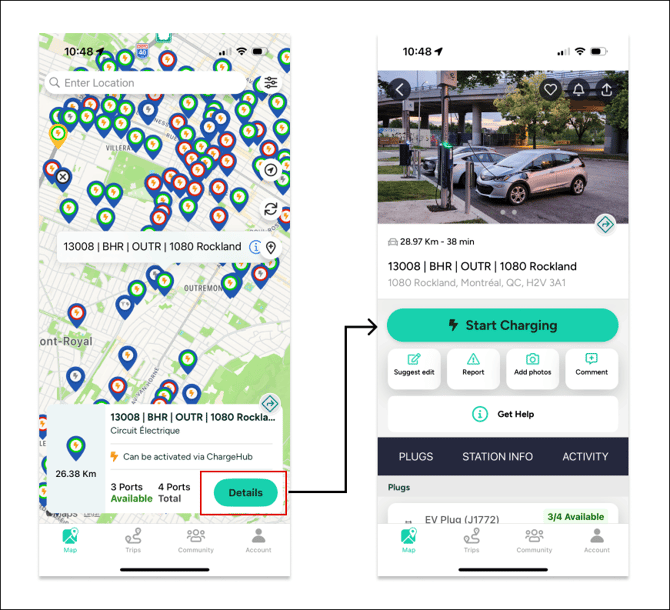
1. Head to a compatible charging station
Compatible stations are marked with an orange lightning bolt and labelled "Can be activated via ChargeHub."
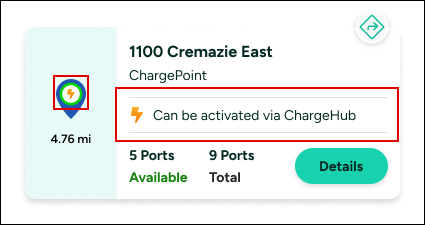
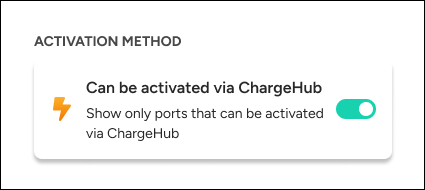
To view only compatible stations on the map, enable the “Can be activated via ChargeHub” filter in the app.
For a complete list of compatible networks, please refer to our compatible networks page.
2. Open the station's Details page
Once you arrive at a compatible station, tap the charger icon in the app, then select “Details.”
If the station can be activated through ChargeHub, you’ll see a “Start Charging” button on this page.
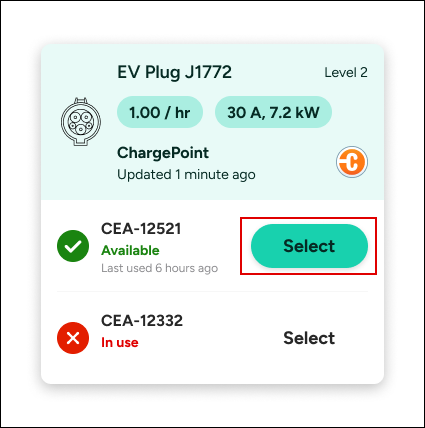
3. Select your plug
Choose the plug you plan to use from the list of available connectors, then tap “Select.”
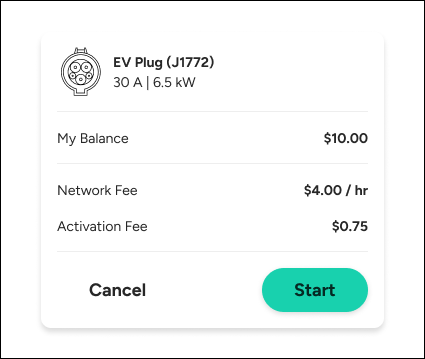
4. Review the charging rates
A summary card will appear showing the pricing for the plug you selected. Review the rates before your session starts.
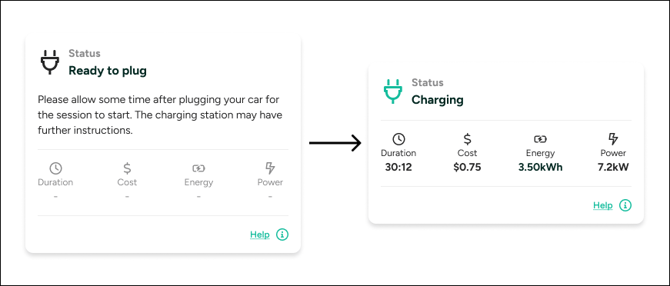
5. Start charging
Tap “Start” and wait for the app to switch to “Ready to plug” mode.
Plug the connector into your vehicle. After a brief delay, the app will display your charging status, including time and energy delivered.
6. End the charging session
For Level 2 station: Unplug the charger from your vehicle.
For the Level 3 station: Press the “Stop Charging” button on the station itself before unplugging the connector.


