 FIND A STATION
 STORE
STORE





 Get the app




Once you’ve created your ChargeHub account, setting up your profile helps you get the most out of the app, making it easier to find relevant charging stations and personalize your experience.
Note: If you’re having trouble creating an account, please refer to our guide on creating a ChargeHub account.
How to set up your ChargeHub profile
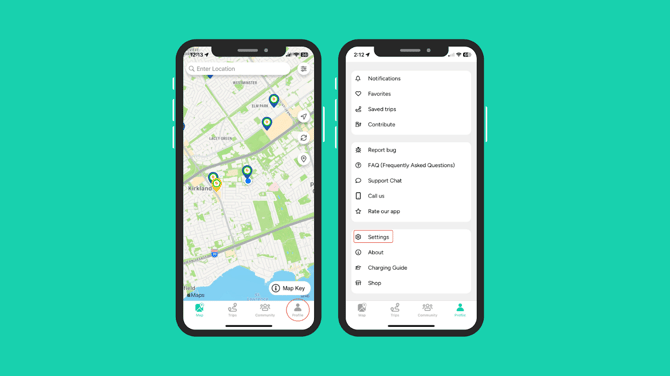
- Open the ChargeHub app and tap the Account tab at the bottom right of the screen.
- From the Profile tab, tap Settings.
- If your account is using a temporary password, update it here for security.
- Select your preferred units of measurement.
- Tap New station notifications, set the radius for alerts about newly added charging stations, name the notification, then tap Save.
- Return to Account > Settings and use the Vehicle model dropdown to select your car. When prompted to adjust filters based on your vehicle’s specifications, we recommend selecting Yes.
- You’re all set! Your ChargeHub profile is now fully configured.