 FIND A STATION
 STORE
STORE






 Get the app




Saving charging stations to your favourites makes it easier to quickly access the locations you use most often. Whether it’s a charger near home, work, or along a frequent route, favouriting stations in the ChargeHub app helps you plan and charge more efficiently.
How to add a charging station to your favourites
- Find a charging station
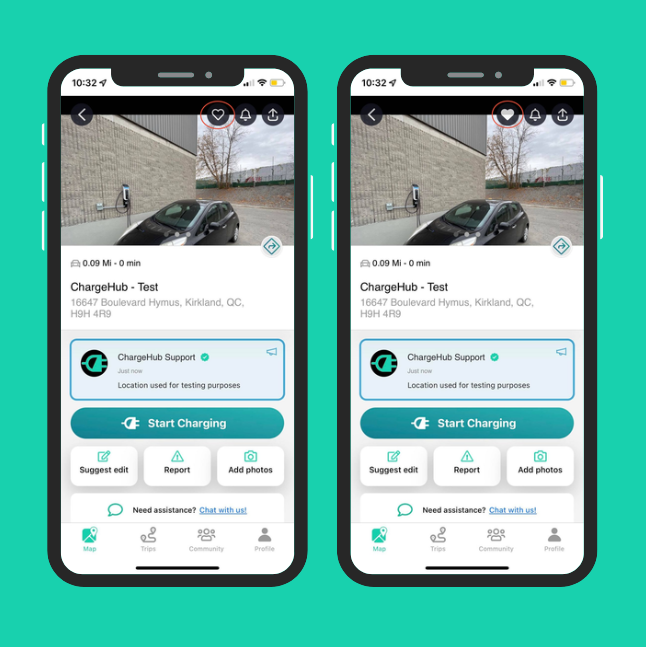
Open the ChargeHub Map and locate the charging station you want to save. Tap the station’s pin, then open its details page. - Tap the heart icon
On the station’s details page, tap the heart icon located in the top-right corner of the screen. - Station added to favourites
Once tapped, the station is automatically saved to your favourites list.
How to view your favourite charging stations
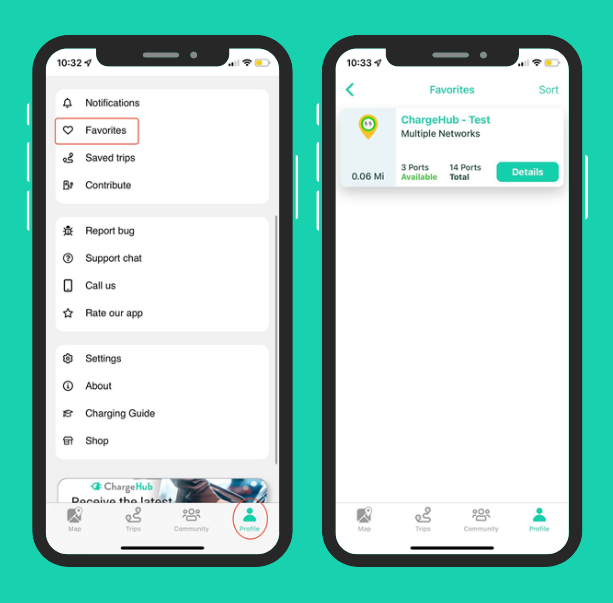
- Open your favourites list
Navigate to the Profile tab in the app, then select Favourites. - Browse and sort stations
You’ll see all the charging stations you’ve favourited. From this list, you can:
- Open the details page of any station
- Sort stations by alphabetical order or distance
How to remove a station from your favourites
Unfavourite a station: Open the station’s details page and tap the heart icon again.
- White heart: The station is favourited
- Grey heart: The station is not favourited
Video: How to favourite a charging station
Watch the short video below for a step-by-step walkthrough on how to add and manage favourite charging stations in the ChargeHub app.


