 FIND A STATION
 STORE
STORE






 Get the app




The ChargeHub Map helps you quickly find public EV charging stations by showing clear, colour-coded information about station type, availability, and compatibility. This guide explains how to read the map, understand station icons, and use filters to find the correct charger for your needs.
Map legend (marker definitions)
The map legend explains what each colour and icon represents. You can open it at any time by tapping the Map Legend button in the app.
|
|
Stations marked with this symbol are compatible stations and can be activated via the ChargeHub application. |
|
|
Stations marked with this symbol cannot be activated via the ChargeHub app. |
|
Level 1 |
Marked by the greyish-blue colour, they are the slowest of the three to charge, and EV owners are usually given one with the purchase of an electric vehicle. They are plugged into a 120V outlet from the car. |
|
Level 2 |
Marked by the blue colour, these are the most common type of charging station, found both publicly and in residential areas. They are plugged into 240V outlets. |
|
Level 3 |
Marked by the yellow colour, these charging stations are also known as Fast Chargers. These are only found commercially and provide the fastest charge. These are used during long trips to maximize your time and get back on the road faster. |
|
Available |
Within the inner ring of a charging station's locator pin, the green colour indicates that the station is available for use. |
|
Busy |
Within the inner ring of a charging station's locator pin, the red colour indicates that the station is currently in use. |
|
Offline |
Found within the inner ring of a charging station's locator pin, the black colour indicates that the station is offline. |
|
Tesla |
The Tesla logo at the center of the charging station locator pin indicates it is a Tesla station. |
|
Coming Soon |
The traffic cone icon at the center of the charging station locator pin indicates the station is under construction and will be available soon. |


Navigating the ChargeHub Map
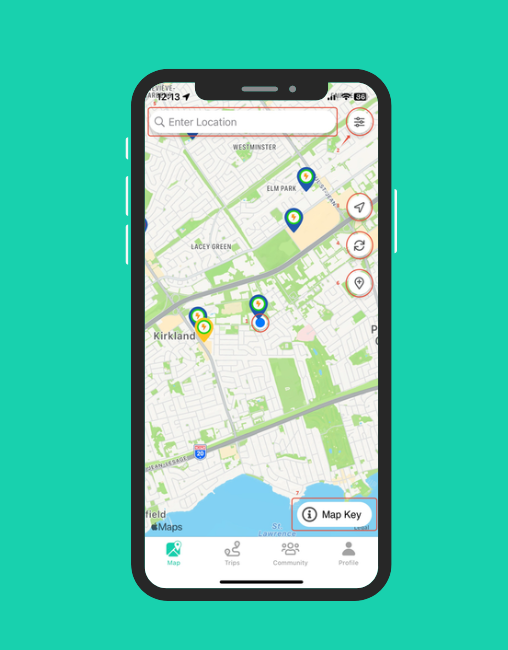
When you open the ChargeHub app after signing up, you’ll land directly on the ChargeHub Map. If location services are enabled, the map will automatically center on your current location.
|
1 |
Current location: The blue circle shows where you are. |
|
2 |
Filters: Opens the filter menu to refine your search. |
|
3 |
Re-center map: Returns the map to your current location. |
|
4 |
Refresh: Updates the map. |
|
5 |
Search bar: Enter an address or location. |
|
6 |
Add station: Submit a new charging station to the map. |
|
7 |
Map legend: Opens the marker definition. |
Using filters to refine your search
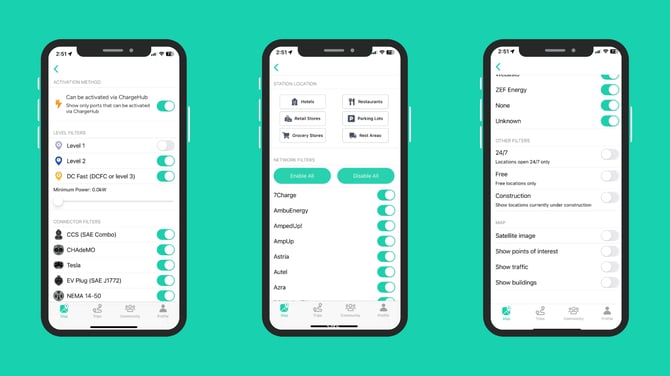
Filters help you find the most relevant charging stations based on your preferences.
Available filters
|
Activation Method |
Allows the user to filter the map only to show stations that can be activated via the ChargeHub application. |
|
Level |
Allows the user to filter by charging station level. |
|
Minimum Power |
Allows the user to filter by the charging station's minimum power output using the slider. |
|
Connector |
Allows the user to filter by connector/plug type. |
|
Station Location |
Allows the user to filter the map to show only stations at specific locations. |
|
Network |
Allows the user to filter by network operator. |
|
Other |
Allows the user to filter by other metrics. |
|
Map |
Allows the user to add features to the ChargeHub map. |
Get the most out of the ChargeHub Map
By understanding the map legend, station colours, and available filters, you can quickly find the right public EV charging station, whether you’re planning a trip or looking to charge nearby.


